Key Takeaways
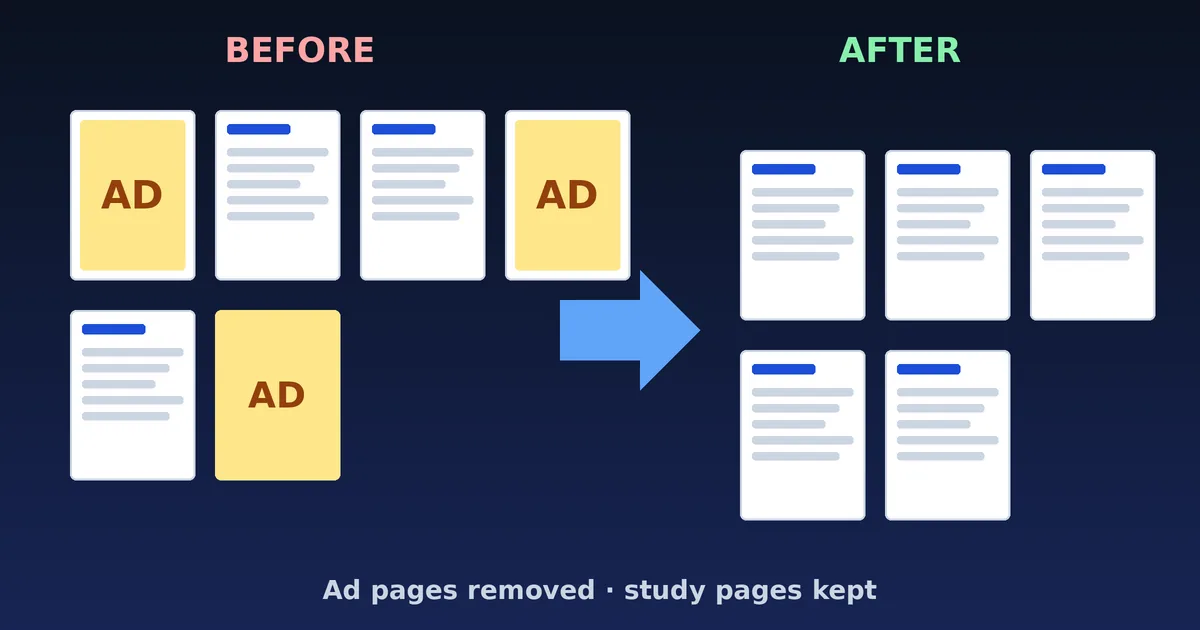
- This free PDF ad remover lets you preview every page, remove ad pages, trim banner margins and download a cleaner PDF.
- It runs in your browser: no upload, no account, no watermark.
- It works best on full-page ads, covers and notice pages. Ads drawn inside study pages need a different method, explained below.
- For wrapped pages, the open-source Gulag Cleaner engine rebuilds originals. This site is an independent alternative, not the official project.
- Always check the cleaned file against your original before printing or sharing.
Free PDF Ad Remover Tool
Choose a PDF, click the ad pages, press Clean PDF. Your file is processed in your browser and never uploaded.
No file selected. Everything runs in your browser.
Trim margins (optional)
Hide a banner at the edge of every page. Values are percentages of the page, 0 to 30. The hidden area stays inside the file.
Your cleaned PDF is ready.
Honest scope: this tool removes the pages you choose, suggests likely ad pages from their text, and can hide margins. It does not rebuild original pages from ad wrappers. Your original file is never changed.
What Is A PDF Ad Remover?
Quick answer: a PDF ad remover is a tool that deletes or hides advertising inside a PDF file, such as full-page ads, banners and promotional covers. It is mostly used by students who download lecture notes and summaries from note-sharing sites and want a clean copy for studying or printing.
Advertising inside a PDF is not like an ad on a web page. A browser extension cannot block it, because it is part of the file itself. To get rid of it you must edit the document: delete pages, hide parts of pages, or rebuild the document from its original pages. Different tools use different methods, and knowing which method fits your file saves a lot of frustration.
This page gives you a working free PDF cleaner and a complete guide to everything around it: the kinds of ads you meet, how to use the tool step by step, how cleaning works, how it compares with cropping and the open-source Gulag Cleaner engine, how to keep your files private, how to fix common problems, and answers to the questions people ask most.
What You Can Do With The PDF Cleaner
Preview Every Page
See thumbnails of all pages before you change anything.
Suggested Ad Pages
Pages that mention advertising are tagged so you can review them quickly.
Remove Pages
Click thumbnails or type a range such as 1-2, 9.
Trim Margins
Hide a banner at the top, bottom or sides of every page.
Private By Design
Files are processed in your browser and never uploaded.
Instant Download
Get the cleaned PDF with a before-and-after page count.
| Feature | How it works | Good to know |
|---|---|---|
| Page preview | Thumbnails of every page, loaded as you scroll | Large files load more slowly on phones |
| Suggested ad pages | Text on each page is checked for advertising words and near-empty first or last pages | Suggestions are guesses; review each one |
| Page range | Type numbers and ranges such as 1-3, 8 | Page numbers start at 1 |
| Margin trim | Sets a crop box on each remaining page | Hides content; it does not erase it |
| Download | Creates a new PDF in memory | Named with “-cleaned” at the end |
| Safety | Refuses to remove every page; never edits your original | Password-protected files are not supported |
Types Of Ads Inside PDF Study Notes
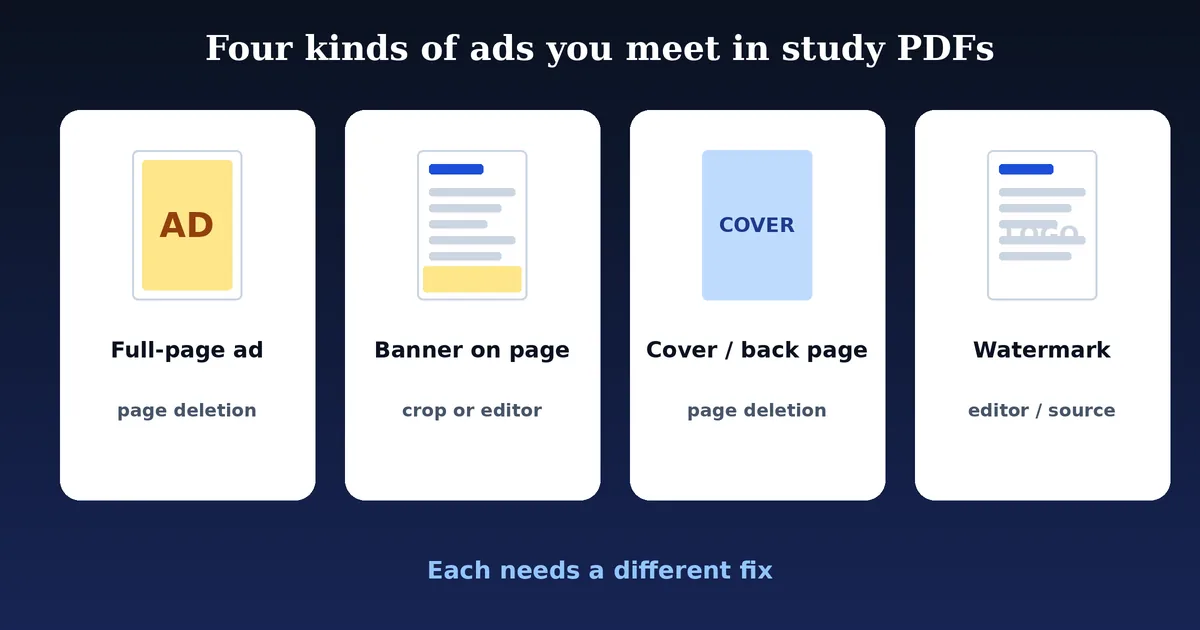
Before you pick a method, look closely at how the advertising appears in your own file. Almost every case falls into one of four groups.
1. Full-Page Advertisements
The ad fills an entire page between or around your notes. This is the easiest case, because deleting the page solves it. The page cleaner on this site is built for exactly this situation.
2. Banners On Study Pages
A strip of advertising runs along the top or bottom of each page. If the banner is clearly separate from the study content, a small margin trim can hide it. If it overlaps text, trimming will cut the notes, so you need a rebuild or editor approach.
3. Covers, Notices And Back Pages
Many files begin with a title or promotional page and end with an invitation page. They are whole pages, so they are simple to remove, but check them first because a cover can contain the course name and author.
4. Watermarks And Logos
A faint logo or text laid over the page is part of the page. Page deletion cannot remove it. Watermarks can also indicate authorship or licensing, so think about whether removing one is appropriate for your use.
Which Method Fits Which Ad?
Full-page ads and covers: delete the page. Edge banners: trim a margin or use an editor. Pages wrapped inside an ad layout: use a tool that rebuilds originals. Watermarks: an editor, or leave them. Our comparison of PDF ad removal, cropping and page deletion goes deeper.
How To Remove Ads From A PDF Step By Step
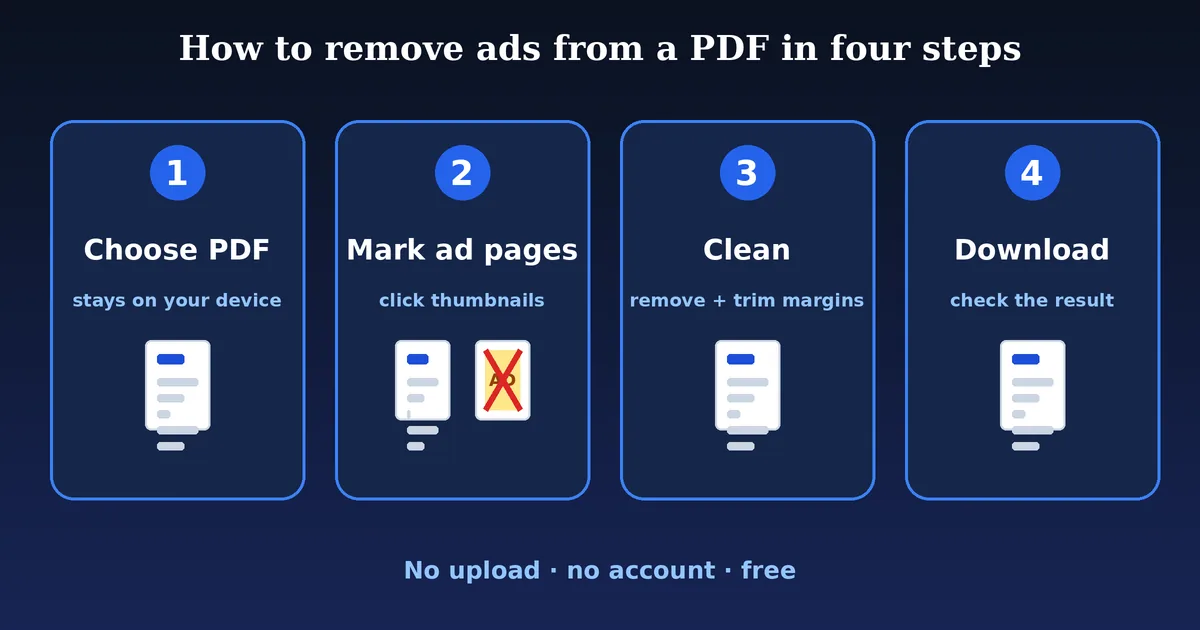
Cleaning a typical study PDF takes about a minute. Follow these six steps.
- Keep your originalSave the downloaded PDF somewhere safe. The tool never changes it, but a backup costs nothing.
- Open the PDF cleanerScroll to the tool and choose your file, or drag it onto the box.
- Review the thumbnailsLook at every page. Pages with advertising words are tagged “Suggested”.
- Mark pages to removeClick a thumbnail (it turns red), use Select suggested, First page, Last page or a range.
- Trim margins if neededAdd a small percentage to the top or bottom if a banner repeats on every page.
- Clean and checkPress Clean PDF, download the result and open it. Compare the page count and scroll through it.
How To Check A Cleaned PDF
Never trust a cleaned file blindly. Compare the before-and-after page count shown after cleaning. Open the first and last pages, scroll through the middle, and look for cut-off text near trimmed edges. Try selecting a few words to confirm that text is still real text. If you notice anything wrong, discard the new file and clean again from your original.
Quick Tips For Better Results
- Start with page removal only. Add margin trimming last, in small steps.
- Use 3–5% as a first trim and increase slowly.
- If every page has a different banner position, trimming will not work well.
- For a long document, use the page range box instead of clicking dozens of thumbnails.
Watch: How To Delete A Page From Any PDF
If you prefer to see page deletion in action, this short tutorial from the channel That Office Guy walks through removing pages in Adobe Acrobat Online. Note the difference from our tool: that service asks you to create an account and upload your file, while the cleaner above works locally in your browser. The idea of selecting and deleting pages is the same.
Video by That Office Guy, published June 13, 2025 on YouTube, loaded only when you press play through the privacy-enhanced youtube-nocookie.com player. It is not made by or affiliated with this site. Open on YouTube.
How To Clean Wuolah PDFs
Wuolah is a study-notes platform that is supported by advertising, and downloaded notes can include ad content inside the PDF. Wuolah has also offered paid plans for ad-free downloads, which is the most direct option if you use the platform a lot.
If The Ads Are Separate Pages
Use the PDF cleaner: tag the ad pages, remove them and download the cleaned copy. Check the first and last pages carefully, as covers and back pages are the most common extras.
If The Ads Wrap Each Page
Deleting pages will not help when each study page sits inside an ad layout. The open-source Gulag Cleaner project says its engine extracts the original file by working on the PDF’s internal structure, not by cropping. If your Wuolah file behaves like this, try that engine on a copy of your file. Our full Wuolah guide lays out the options in order.
Report Problems Properly
If a tool removes the wrong pages, keep the original, note the page numbers and report the problem to the tool’s developers with a sample you have permission to share.
How To Clean StuDocu PDFs
StuDocu documents can include covers, notices and back pages around the original notes. Treat each file individually, because layouts vary between documents and over time.
- Open the file in the PDF cleaner and check every thumbnail.
- Mark the cover, notice or back page, or use the First page and Last page buttons.
- Clean the PDF and verify the first and last pages of the new file.
- Print or study from the cleaned copy.
Read the detailed StuDocu cleaning guide, and remember that the result depends on how your specific file was built. If the extras are embedded in each page, consider a rebuild tool instead.
How PDF Ad Cleaning Works
Understanding the process helps you predict what will and will not work. A PDF is a container of pages. Each page holds content such as text, images and drawings, and the file also stores structure data. Cleaning tools work at different levels of that structure.
Level 1: Pages
The simplest tools delete whole pages. This is what the cleaner on this site does after you choose pages. It rewrites the document without those pages and leaves the other pages exactly as they were, so text and images are not recompressed.
Level 2: Page Boxes
Every page has boxes that define what is visible. Setting a crop box makes viewers display only a smaller area. It is quick and non-destructive, but the content outside the box remains inside the file.
Level 3: Page Content
Editors can change what is drawn on a page, removing images or text objects. It is powerful but manual and depends on how the original PDF was produced.
Level 4: Rebuilding Originals
Some documents embed an original page inside a new page with ads around it. Tools like the open-source Gulag Cleaner engine look for that embedded page and build a new document from it. According to the project, this avoids cropping and aims to keep the original quality. It works only when the file has a structure the tool recognises.
Why Safety Checks Matter
Automatic detection can be wrong. A page that talks about marketing may be flagged as advertising, and an unusual file may not be recognised at all. That is why this tool shows you every page and never deletes anything without your click, and why you should always compare the result with your original.
Does Removing Ads Affect PDF Quality?
It depends on the method. Page deletion keeps the remaining pages unchanged, so text stays selectable and images keep their resolution. The file size usually drops because fewer pages are stored. Margin trimming changes only the visible area, so quality is unchanged inside it. Methods that re-render pages, such as printing to a new PDF, can change fonts, links and bookmarks.
| What to check | Page deletion | Margin trim | Print to PDF |
|---|---|---|---|
| Text selection | Unchanged | Unchanged | Usually kept, may change |
| Image sharpness | Unchanged | Unchanged | May be recompressed |
| Page size | Unchanged | Visible area smaller | Set by printer options |
| Links and bookmarks | Links on kept pages stay | Unchanged | Often lost |
| File size | Usually smaller | Similar | Varies |
These comparisons describe how each method works in general, not measured results for every file. Test your own document and keep the original until you are satisfied.
Privacy: Is Cleaning PDFs Online Safe?
Study files can contain names, student numbers or private comments, so it matters where they go. This site is built so that your PDF does not leave your device: the page loads its tools, then your browser reads the file, builds the cleaned copy in memory and offers it as a download. There is no upload form and no file storage on the site.
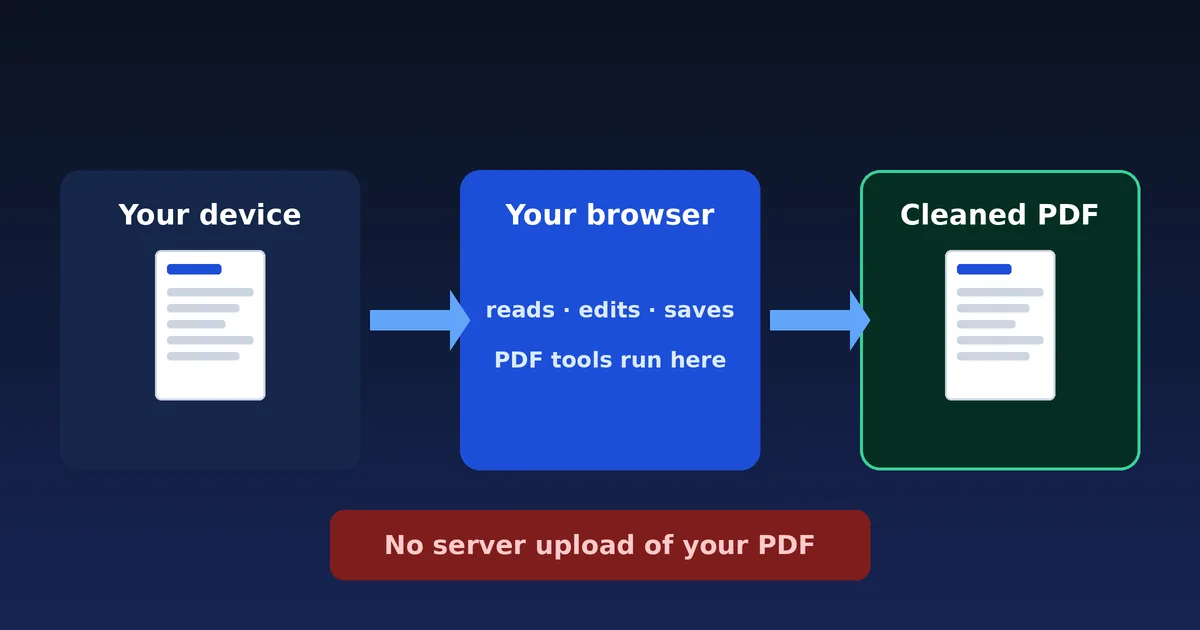
How To Verify It Yourself
- Open your browser’s developer tools (press F12) and choose the Network tab.
- Clear the list, then choose a harmless test PDF in the cleaner.
- Look for requests that carry your file. The page will load its own scripts and fonts for the PDF tools, but no upload of the document should appear.
This is a practical check, not a guarantee for the future, so repeat it if you work with sensitive files. We explain what we collect in the privacy policy, and our online PDF cleaning privacy checklist shows how to judge any tool.
Remaining Risks
Local processing does not protect against browser extensions that read pages, shared computers that keep downloads, or metadata left inside a PDF. For confidential documents, use trusted offline software.
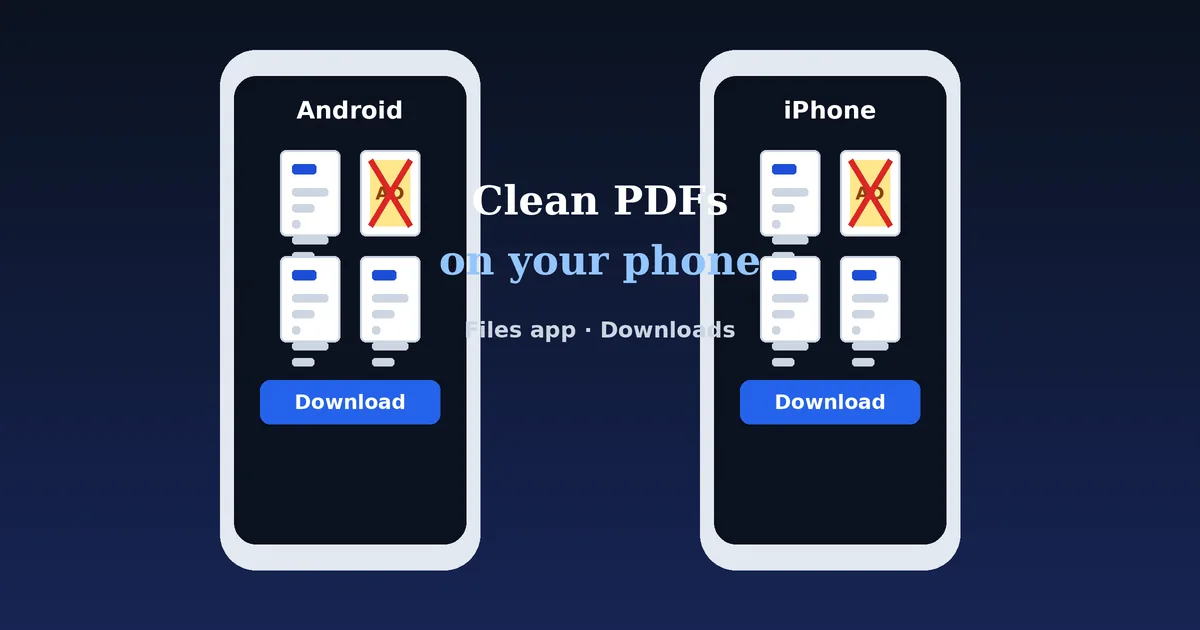
How To Clean PDFs On Android And iPhone
Android
Open this page in Chrome, tap the file box and choose the PDF from your Downloads folder. Tap the ad pages, press Clean PDF and then Download. The cleaned file appears in Downloads with “-cleaned” added to its name.
iPhone And iPad
Save your PDF to the Files app first. Open this page in Safari, tap the file box, choose the PDF and clean it. Safari may ask you to confirm the download; afterwards open the Downloads list or the Files app to find the result.
Tablets And Desktop
The workflow is identical. On desktop you can also drag the PDF onto the file box. Larger screens make the thumbnail grid easier to review.
Phones have limited memory, so very large PDFs may be slow. Close other tabs, work with a smaller file or finish the job on a computer. See the full mobile PDF cleaning guide.
Common Problems And Fixes
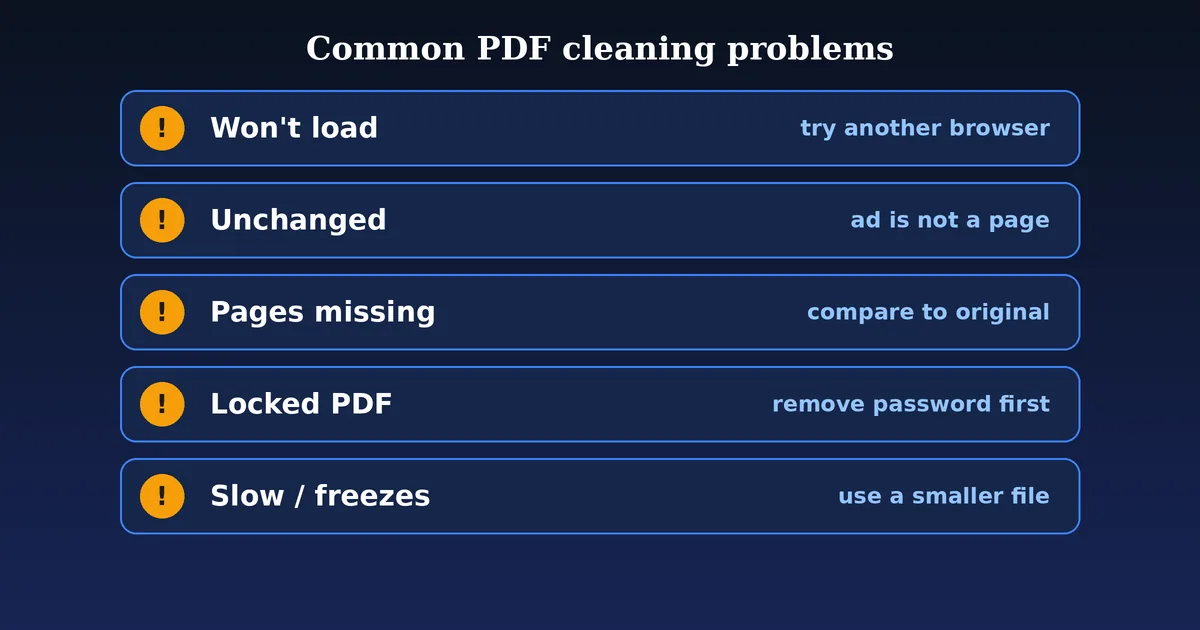
| Problem | Likely cause | What to try |
|---|---|---|
| File will not load | Damaged download or unsupported file | Download again, check it opens in a PDF reader, try another browser |
| “Password-protected” message | Encrypted PDF | Remove the password in a reader you trust, then retry |
| PDF looks unchanged | Ad is inside a page, not a separate page | Try a small margin trim or a rebuild tool |
| Important pages missing | Wrong pages marked | Discard the file, reopen your original and review every marked page |
| Page freezes or is slow | Large file or low memory | Close tabs, use a smaller file, try a computer |
| Download does not start | Blocked downloads | Allow downloads for this site in your browser |
| Text looks cut off | Margin trim too large | Lower the percentage or remove the trim |
| Thumbnails are blank | Complex page content | You can still mark pages by number; check the final file |
More detail is in our guide PDF ad remover not working: 12 fixes.
PDF Ad Removal Vs Page Deletion Vs Cropping
These terms are often mixed up. The right method depends on how the ad is built into the file.
| Method | Best for | Main limitation |
|---|---|---|
| Page deletion | Full-page ads, covers, notices | Cannot remove ads inside a page |
| Cropping | Banners at the edge of pages | Hides rather than removes; may cut real text |
| Rebuilding original pages | Pages wrapped inside an ad layout | Needs a structure the tool recognises |
| PDF editor | Individual embedded objects | Manual and time-consuming |
| Paid ad-free download | Clean originals with no effort | Costs money; depends on the platform |
Where This Site Fits Next To Gulag Cleaner
Gulag Cleaner is an open-source project under the GPL-3.0 licence. Its repository describes a tool that extracts the original file by manipulating the PDF’s internal structure, available as a website and as Python, Rust and WebAssembly versions. This site is independent and not affiliated with that project. It offers a different, simpler approach: you see every page, you choose what to remove, and you can trim margins. If you are searching for a Gulag Cleaner alternative, use this tool for full-page ads and covers, and try a rebuild tool when ads wrap each page. See our alternatives comparison.
Who Can Benefit From A PDF Ad Remover?
University And College Students
Clean covers and ad pages from lecture notes and summaries so you study only what matters, and so you print fewer pages.
Exam Revision
When you merge many documents into one revision pack, removing extras makes the pack shorter and easier to navigate.
Teachers And Tutors
Prepare handouts from documents you are allowed to use without promotional pages in the middle.
Researchers And Self-Learners
Tidy permitted study documents before annotating them in a PDF reader.
People Printing At Home Or In Libraries
Fewer pages means less paper and a lower printing bill.
A fair-use reminder: this tool is for tidying files you are entitled to use. It does not bypass paywalls or grant access to documents, and you should not redistribute copyrighted material you have no right to share.
Latest PDF Cleaning Guides
Go deeper with step-by-step guides for Wuolah and StuDocu files, mobile cleaning, fixes, privacy and alternatives.
How to Remove Ads From Wuolah PDFs (Free Guide)
Remove ads from Wuolah PDFs for free: understand how ads appear in downloaded notes, clean ad pages, trim banners and know when to use the Gulag Cleaner engine.
How to Remove Ads From StuDocu PDFs: Clean Notes Fast
Clean StuDocu PDFs: remove cover pages, notice pages and extra back pages, trim margins and check your study notes before printing or sharing.
PDF Ad Remover Not Working? 12 Fixes That Help
PDF ad remover or Gulag Cleaner not working? Fix files that will not load, stay unchanged, lose pages, freeze or fail to download with these 12 tested checks.
Is Online PDF Cleaning Safe? Privacy Checklist
Is it safe to clean PDFs online? Learn the difference between browser-based and upload tools, how to verify no upload happens and a simple privacy checklist.
Remove PDF Ads on Android & iPhone (Step by Step)
Clean PDF ads on your phone: step-by-step instructions for Android and iPhone, how to find the file, remove ad pages, save the result and fix mobile problems.
PDF Ad Remover & Gulag Cleaner Alternatives (Compared)
Compare Gulag Cleaner alternatives and free PDF ad removal methods: page cleaners, PDF editors, cropping tools and paid ad-free downloads, with pros and cons.
How to Remove Pages From a PDF for Free (4 Easy Ways)
Remove pages from a PDF for free: use the browser cleaner, a PDF reader, a print-to-PDF trick or a command-line tool. Steps, pros, cons and privacy notes.
PDF Ad Removal vs Cropping vs Page Deletion Explained
Understand the difference between PDF ad removal, cropping and page deletion, when each works, what each hides or deletes, and how to pick the right method.
Browse all PDF guides or return to the free PDF ad remover.
PDF Cleaning Glossary
- PDF ad remover
- A tool that deletes or hides advertising in a PDF file.
- Page deletion
- Removing whole pages from a document.
- Crop box
- A page setting that defines the visible area shown by PDF viewers.
- Extraction
- Building a new PDF from original pages found inside an ad layout.
- Wrapper
- A page layout that surrounds an original page with banners, covers or notices.
- Watermark
- A faint logo or text laid over page content.
- Metadata
- Hidden information in a file such as title, author or creation date.
- Client-side processing
- Work that happens in your browser instead of on a remote server.
- Open source
- Software whose code is published so others can read and reuse it under a licence.
- Encrypted PDF
- A document protected by a password or permissions.
PDF Ad Remover FAQ
How do I remove ads from a PDF for free?
Open the PDF cleaner on this page, choose your file, click the thumbnails of the ad pages (or use “Select suggested”), press Clean PDF and download the result. It is free, needs no account and runs in your browser.
What is the best PDF ad remover?
It depends on how the ads are built into your file. Tools that rebuild the original pages, such as the open-source Gulag Cleaner, suit platform wrappers. A page cleaner like this one suits full-page ads, covers and banner margins. Our methods comparison explains which to choose.
Can I remove ads from Wuolah PDFs?
Often yes, but the method matters. Full-page ads can be deleted with this tool. If each study page sits inside an ad wrapper, the open-source Gulag Cleaner engine is designed to extract the original pages. Wuolah also sells ad-free downloads through paid plans.
Can I remove ads from StuDocu PDFs?
Covers, notice pages and back pages can usually be removed page by page. Results depend on how a particular file was built, so always compare the cleaned PDF with the original.
Does this PDF ad remover upload my files?
No. The PDF is read and edited by code running in your browser, and the site has no upload form or file storage. You can confirm it yourself with your browser’s Network tab, as explained in the privacy section.
Will removing ads reduce PDF quality?
Removing whole pages does not re-compress the remaining pages, so text and images stay as they were. Trimming margins hides area with a crop box rather than redrawing the page.
Can I clean multiple PDFs at once?
This tool handles one PDF at a time so you can review every page. Clean files one after another, or merge them afterwards if you need a single document.
Can I remove advertisements on Android?
Yes. Open this page in Chrome or another current browser, choose the PDF from Downloads, mark the ad pages and save the cleaned file back to your device.
Can I remove ads from a PDF on iPhone?
Yes. Open the page in Safari, tap the file box, pick the PDF from the Files app, clean it and use Download to save the result to Files.
Why does the PDF look unchanged after cleaning?
The ad is probably part of the page itself rather than a separate page. Page deletion cannot remove content drawn inside a study page; trimming a margin can hide a banner, or a source-rebuilding tool may be needed.
Can I remove a banner from inside a PDF page?
You can hide a banner at the top, bottom or side with the margin trim option. The hidden content stays inside the file. A PDF editor can remove embedded objects, but it requires manual work.
Is a PDF ad remover the same as a page remover?
Not exactly. A page remover deletes pages you choose. An ad remover aims to eliminate advertising, which may also mean extracting original pages or hiding banners. This tool combines page removal, ad-page suggestions and margin trimming.
Can I clean password-protected PDFs?
Not directly. Remove the password in a PDF reader you trust, save an unlocked copy where you have the right to do so, then clean that copy.
What should I do if important pages disappear?
Do not use the cleaned file. Go back to your original, which this tool never changes, and run the cleaner again, checking each marked page before you press Clean PDF.
Is PDF ad removal legal?
It depends on your country, the document’s licence and the terms of the site you downloaded it from. Cleaning your own copy for personal study is different from sharing copyrighted notes. This is general information, not legal advice.
Sources, Method And Limits
We wrote this page from the behaviour of the tools described and from public project information. These links are worth reading for more detail. We are not affiliated with any of them.
- Gulag Cleaner on GitHub: the open-source project, its licence, installation and usage notes.
- gulagcleaner.com: the project’s web version.
- pdf-lib: the MIT-licensed library this tool uses to edit PDFs.
- PDF.js by Mozilla: the Apache-2.0 library used to draw page previews and read page text.
- Google: creating helpful, people-first content: guidance we follow for this site.
Testing And Limits
The cleaning logic was tested on generated sample PDFs, including page removal, margin trimming on rotated pages and refusal to remove every page. It has not been validated against every real-world Wuolah or StuDocu file, so results vary and you should always check the output. Methods that rebuild original pages are outside the scope of this tool.
This tool and its guides are provided for personal study. Read the disclaimer and terms of use.
Ready To Clean Your PDF?
Open the free PDF cleaner, mark the ad pages and download a cleaner file in about a minute.
Back To The PDF Cleaner